Problem
As part of our business operations, one service uses a headless browser specifically to take screenshots of web pages.
But at the time a problem came up: taking screenshots in the local development environment worked fine, but after the service was deployed to the server, screenshots of the same web page were inconsistent.
The main symptom was that content embedded in an iframe could not be captured properly.
Screenshot flow
- The headless browser opens a frontend page.
- A rendering method is executed in the console.
- The service watches whether specific elements have finished loading, including img and iframe elements.
- Once loading is complete, it takes the screenshot.
Troubleshooting process
1. Local debugging: open the browser with the page and analyze
Analysis of the network requests showed that the page sends a request to the test environment's main site to retrieve the iframe.
It looked like this: https://xxx.test.com/api/iframe
Then the first problem appeared. The test environment is accessed over the company VPN, which means DNS resolution goes through the company's local DNS server to resolve the specific IP address.
But once the service was deployed to a pod in a public-cloud k8s cluster, it was using the public cloud's DNS, so it definitely could not send this request correctly.
So I changed it to a DNS name that the pod in k8s could resolve, and the request was ultimately sent to http://server/api/iframe.
Background: how DNS resolution works
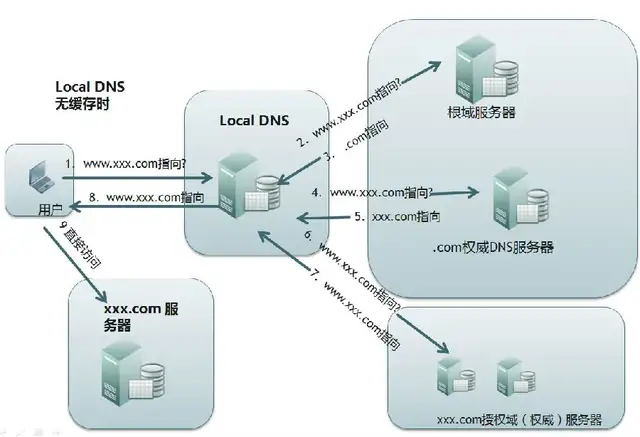
image.png
The resolution process works like this:
The user initiates a DNS query.
When a user enters a domain name in the browser, the browser first checks its local cache for the IP address corresponding to that domain. If it finds one, it uses that IP address directly; if not, it initiates a DNS query.Operating system cache
The operating system checks its own DNS cache for the IP address corresponding to the domain. If it finds one, it returns the IP address; if not, it queries the configured DNS server.Query the local DNS server (the ISP's DNS server)
The local DNS server is a DNS server provided by the user's internet service provider (ISP). When the operating system finds no cached record, it sends a query to the local DNS server.Recursive query
If the local DNS server has no cached record for the domain, it performs a recursive query on the user's behalf, looking up the IP address level by level. This involves the following steps:
a. Root name server
The local DNS server first queries a root name server. Root servers hold information about all top-level domains (such as .com and .org).
b. Top-level domain (TLD) name server
The root server returns the address of the corresponding top-level domain server (for example, the server for the .com domain). The local DNS server then sends a query to that TLD server.
c. Authoritative name server
The TLD server returns the address of the authoritative name server that manages the specific domain (for example, example.com). Finally, the local DNS server sends a query to the authoritative name server.
Return the result
The authoritative name server returns the IP address corresponding to the domain. The local DNS server caches that IP address for a period of time so future queries are faster, then returns the IP address to the operating system.
2. Request tracking problem
After solving the above problem, I found that the screenshot function still had issues after server deployment, and the iframe content still was not loading correctly.
Because network requests on the server couldn't be inspected and there were no specific logs to check, I eventually confirmed through various means that it was basically still the same problem: the request was not being sent.
The problem was: because of a cross-origin issue, the request first sent a preflight request (an OPTIONS request) to check whether the subsequent request was allowed, and then sent our POST request to http://server/api/iframe.
The preflight request was sent directly to our service, but handling preflight requests is the gateway's job, so this request still wasn't being sent correctly.
So we configured the test environment's DNS resolution in the public-cloud k8s DNS, let the request go to the gateway, and then handled it normally.
In fact, this problem wouldn't happen in the production environment, because production doesn't have situations where DNS can't resolve.
Background: cross-origin issues
What is cross-origin?
The cross-origin problem refers to browsers restricting, for security reasons, interaction between a document or script loaded from one origin (domain, protocol, or port) and resources from another origin. It is caused by the browser's Same-Origin Policy.
Let me briefly explain a few key points about cross-origin issues:
- Same-origin definition: the protocol, domain, and port are all the same.
- Scope of restriction: mainly HTTP requests made with XMLHttpRequest or the Fetch API, along with DOM operations and the like.
- Common scenario: frontend JavaScript code tries to request a backend API from a different origin.
- Security consideration: preventing malicious websites from using scripts to access sensitive data on other websites.
- Solutions:
- CORS (Cross-Origin Resource Sharing): the server sets specific HTTP headers
- JSONP: takes advantage of the fact that <script> tags are not subject to the same-origin policy
- Proxy server: creates a proxy on a same-origin server
- WebSocket: natively supports cross-origin communication
- Impact: cross-origin restrictions can block certain Web application features, especially in architectures where the frontend and backend are separated.
What does the browser do when it discovers it needs to send a cross-origin HTTP request?
When a browser discovers that it needs to send a cross-origin HTTP request, it takes a series of specific actions. This process usually involves a preflight request and the actual request. Here's a detailed explanation:
Simple requests:
For simple requests (such as GET, HEAD, or POST requests with no custom headers and a Content-Type limited to application/x-www-form-urlencoded, multipart/form-data, or text/plain), the browser will:- Send the request directly to the server
- Add an Origin header to the request to indicate the request's origin
- Wait for the server's response and check headers such as Access-Control-Allow-Origin
Non-simple requests (preflight required):
For non-simple requests (such as those using PUT or DELETE methods, or with custom headers), the browser will:
a. Send a preflight request (OPTIONS method):
- Include an Origin header
- Include an Access-Control-Request-Method header indicating the HTTP method the actual request will use
If there are custom headers, also include an Access-Control-Request-Headers header
b. Wait for the server's response to the preflight request:
- Check Access-Control-Allow-Origin
- Check Access-Control-Allow-Methods
- Check Access-Control-Allow-Headers (if the request has custom headers)
Check Access-Control-Max-Age (optional; specifies how long the preflight response can be cached)
c. If the preflight request passes:
- Send the actual request
Include an Origin header in the actual request
d. Wait for the server's response to the actual request:
Check Access-Control-Allow-Origin again
Handling the response:
- If the server's response does not include the correct CORS headers (mainly Access-Control-Allow-Origin), the browser blocks JavaScript code from accessing the response content
- If the CORS headers are correct, JavaScript can process the response normally
Error handling:
- If the CORS check fails at any stage, the browser outputs an error message in the console
- The JavaScript Promise or the XMLHttpRequest onerror callback is triggered
Caching preflight requests:
- If the server includes an Access-Control-Max-Age header in the preflight response, the browser caches the result and does not send the same preflight request again for the specified period of time